Windows Authentication and limited permission With SQL Planner
1 min read
Many users prefer using Windows Authentication with limited permissions (View Server State) for SQL Server monitoring. Below are the steps to implement this configuration within SQL Planner:
To provide SQL Server monitoring with limited permissions (View Server State), follow these steps to configure SQL Planner using a domain user:
Step 1: Create the Monitoring Job
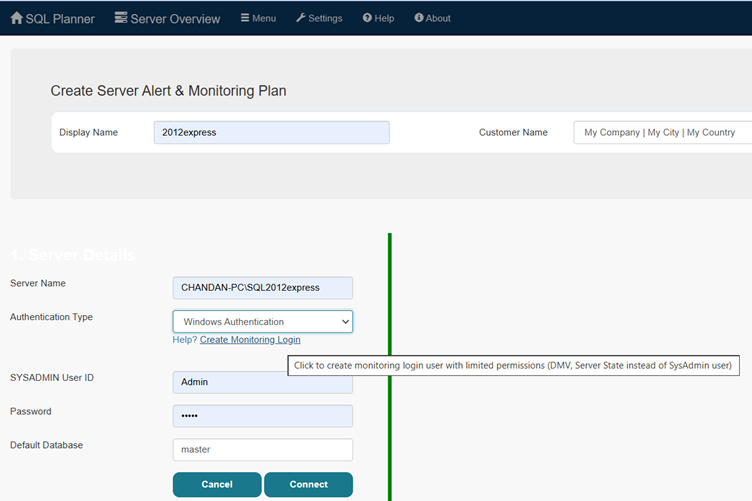
Navigate to Menu > Create SQL Server Monitoring Job.
Enter your SQL Server Name.
Select Windows Authentication as the connection type
Step 2: Authenticate the Domain User
Enter the Domain User credentials.
Click Connect.
Step 3: Configure Permissions
If the domain user lacks a login or the required permissions on the target server, follow the instructions below to resolve the access issue.
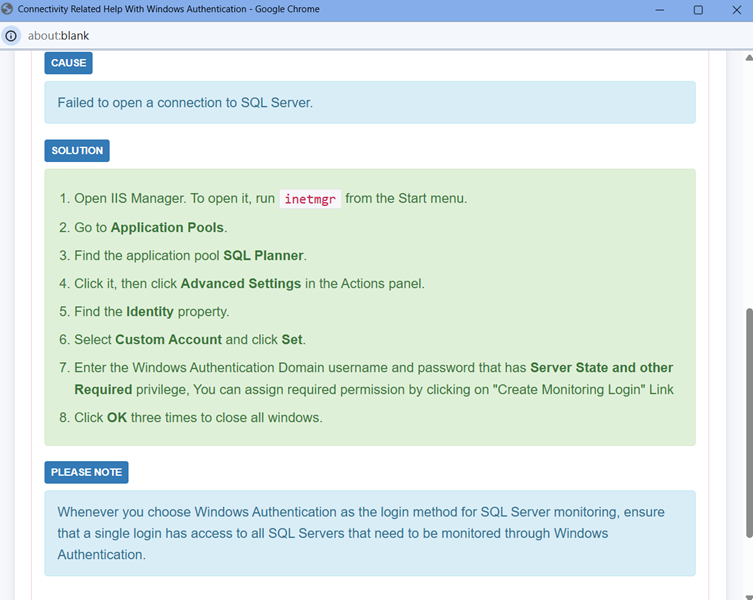
Prerequisite : IIS setting also must run with this domain user , Click on Help and follow instruction to set that user under SQL Planner application pool
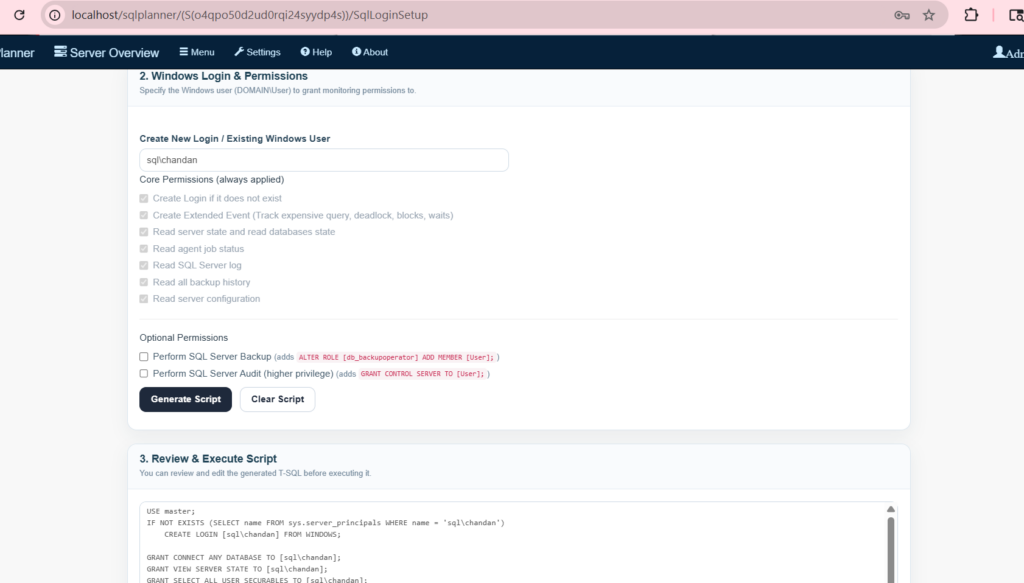
If the domain user lacks login access or necessary permissions for the target SQL Server, you must grant them.
You can do this by clicking “Create Monitoring Login,” entering the server details, and assigning permissions. Alternatively, click “Generate Script” and execute it directly on the SQL Server you intend to monitor.
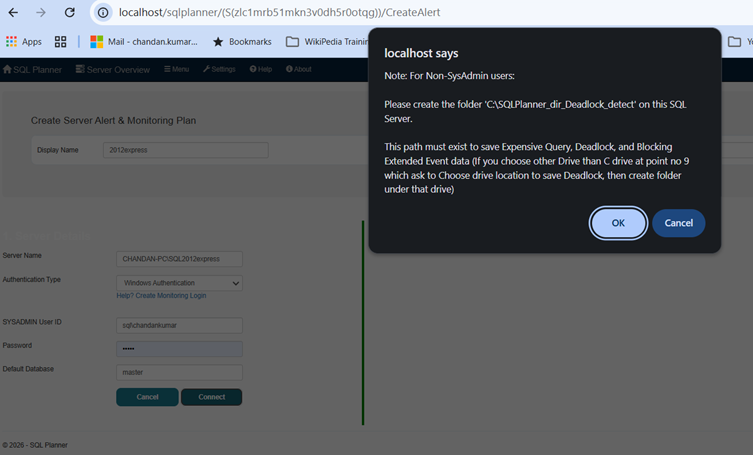
Once Done then Come back to Monitoring Job Screen and click connect , it would ask you to create a Folder (SQLPlanner_dir_Deadlock_detect) under C drive or any other , where Extended event temp files can be saved.
Then At the end customize all alert settings and save the job , repeat the same with all servers you wish to monitor.