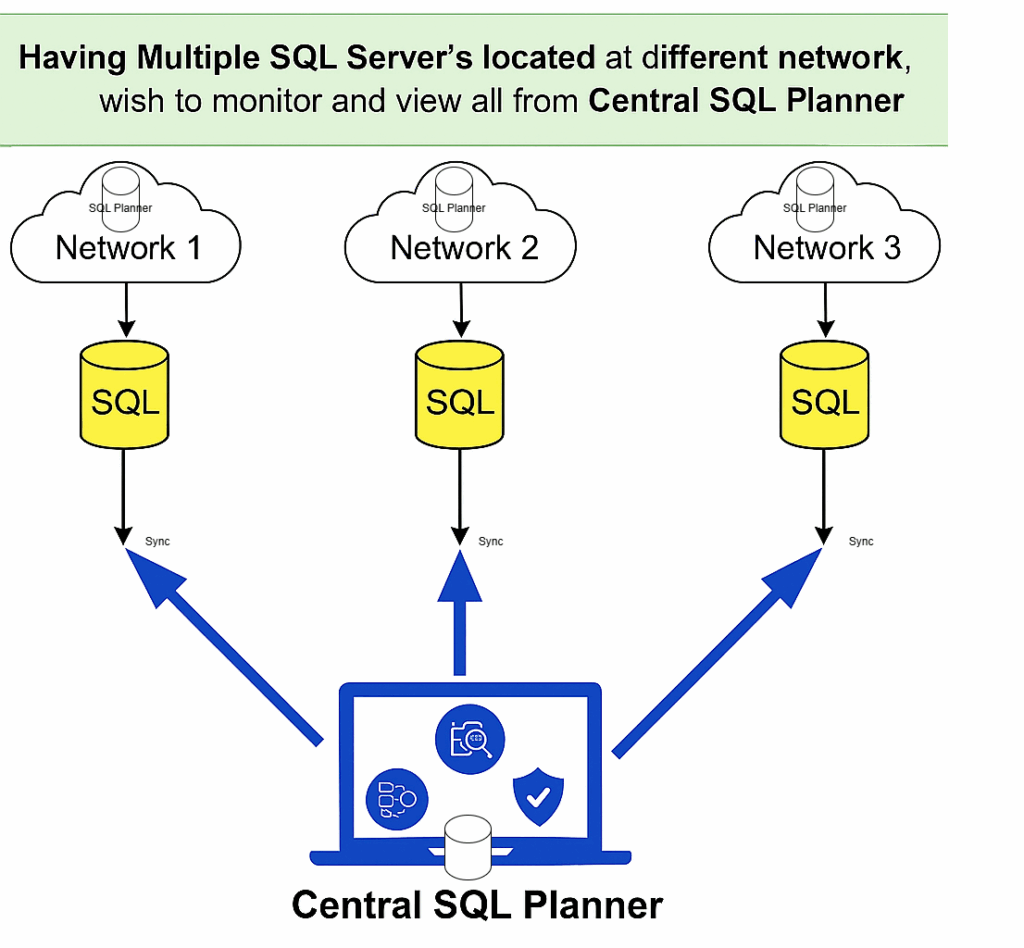
Having Multiple SQL servers located at different network? Do you wish to monitor and view all of SQL server monitoring report and analyze from Central SQL Planner
Here is a solution on how to do it in SQL Planner :
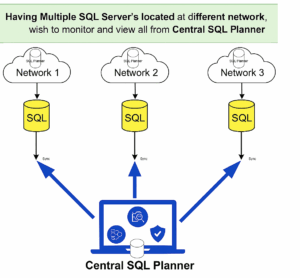
Let us consider a scenario with three separate networks where each network may host multiple SQL Servers to monitor. Install SQL Planner in each network and configure the local SQL Planner to monitor the SQL Servers of that network and to handle alerts locally.
The Central SQL Planner must be hosted on a common network or in the cloud and must be reachable from every local network. Whitelist the Central SQL Planner so local SQL Planner instances can connect to it; only then will local private SQL Planner data be able to sync to the Central SQL Planner.
Setting To configure local SQL Planner instances to sync with the Central SQL Planner:
Local SQL Planner resource data stored in SQL Server is synchronized to the Central SQL Planner using the SQL Server Linked Server feature.
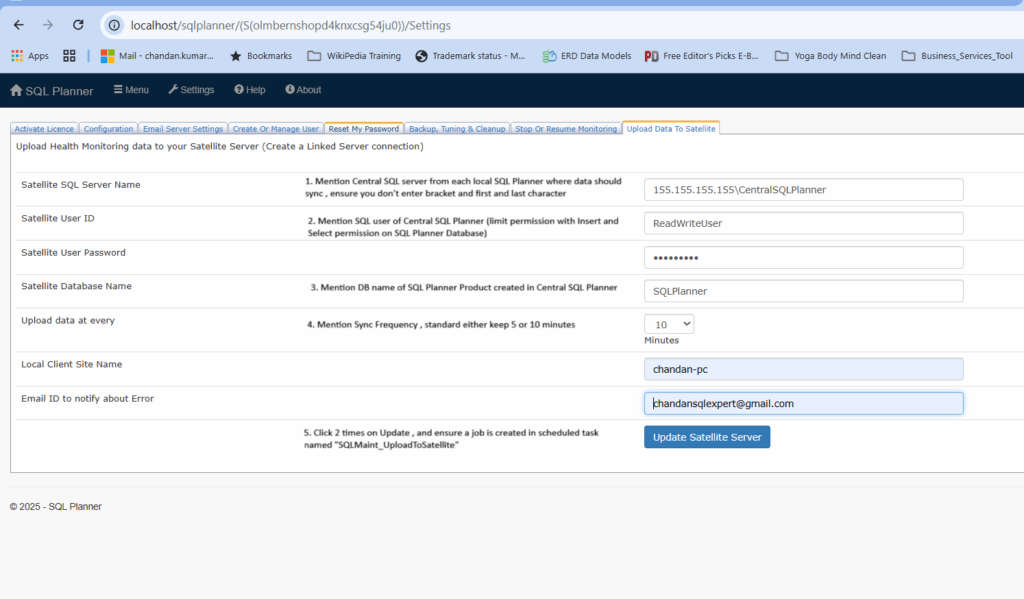
In Each Local SQL Planner application > Settings > “Upload Data To Satellite” Tab : Provide the central server name and a SQL user account created on the Central SQL Server with limited permissions (INSERT and SELECT on the Central SQL Planner database tables).
This screen ask you to provide central SQL server name, SQL userid (create one in Central SQL server with limited permission – Insert and Select to each table in Central SQL Planner Database)
At the End Click – Update Satellite Server.
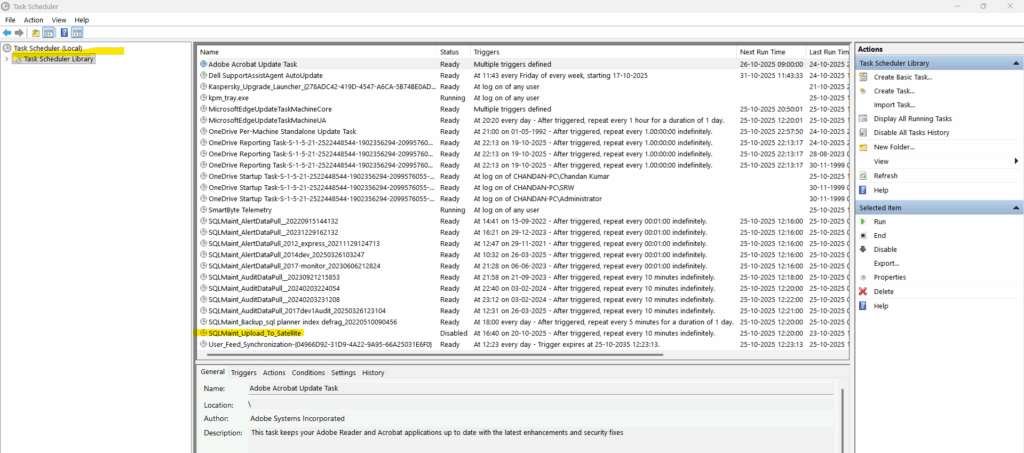
Verify that the scheduled job “SQLMaint_Upload_To_Satellite” exists in each local environment. If it does not appear, click “Update Satellite Server” and verify the job is created.
Security
Because synchronization uses SQL Server Linked Servers and operates within your company network, security configuration and enforcement are under your organization’s control. You can encrypt connections, apply certificates, and adjust Linked Server settings to conform to your security policy.